
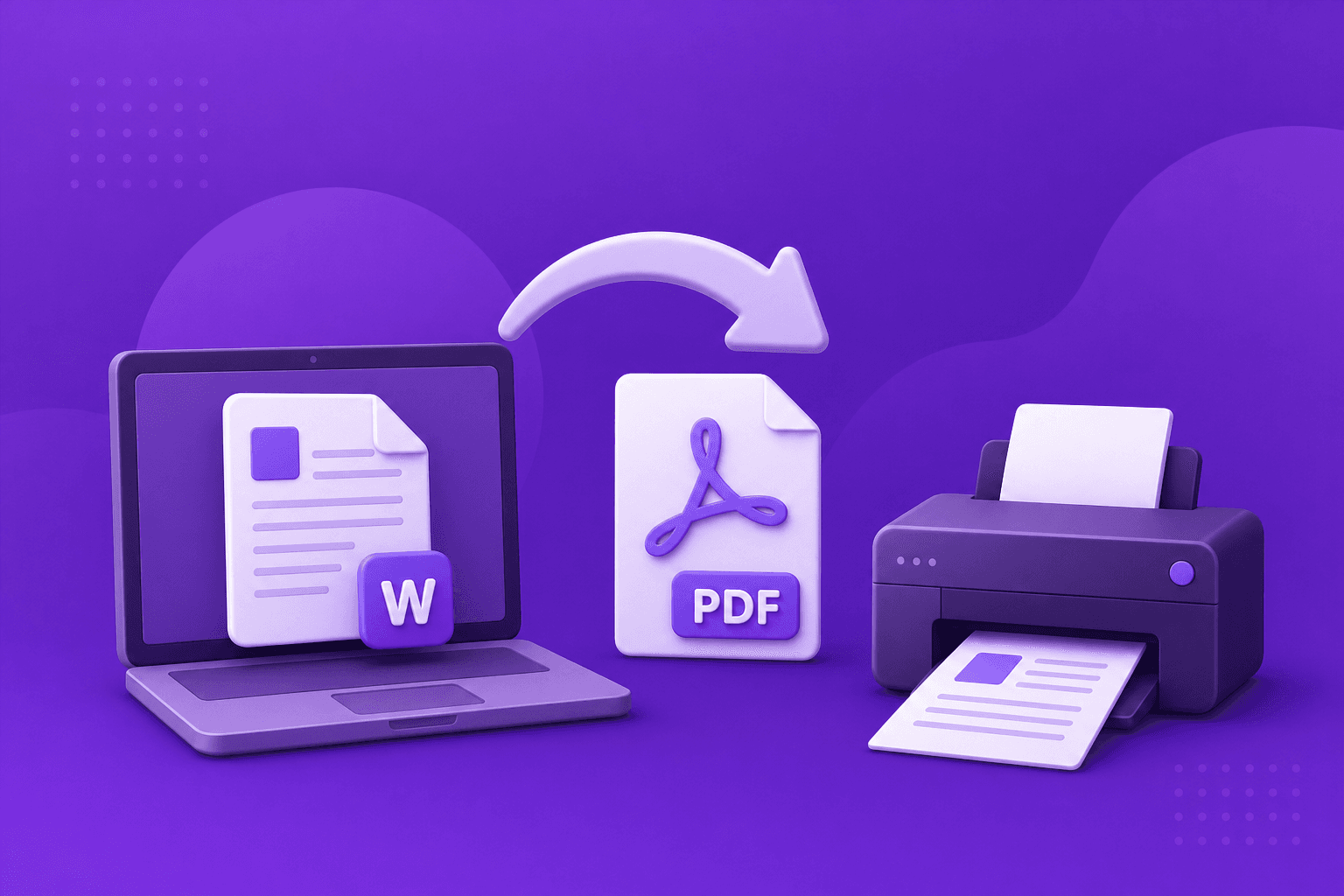
printle prints from PDF files so what you see in the preview is what we print. If your document is in Word, Google Docs, Pages, or another format, save or export it as PDF first, then upload it here.
Why we only support PDF files
PDF (Portable Document Format) ensures consistent formatting, embedded fonts, preserved layouts, and reliable print quality across devices. A Word document can look different depending on which fonts are installed on the computer that opens it — a PDF looks exactly the same everywhere, which is why it's the standard format for professional printing.
- Consistent formatting on every device
- Embedded fonts and graphics
- Preserved page layouts and margins
- High print quality
From Microsoft Word (Windows)
- Open your document in Word
- Click File → Save As
- Choose PDF in the file type dropdown
- Click Save
From Microsoft Word (Mac)
- Open your document in Word
- Click File → Save As
- Select PDF as the file format
- Click Save
From Google Docs
- Open your document
- Click File → Download → PDF Document (.pdf)
From Apple Pages
- Open your document in Pages
- Click File → Export To → PDF…
- Choose your quality setting and click Next, then Export
From your phone (iPhone or Android)
Most office apps have a "Save as PDF" or "Export as PDF" option in their share or export menu. If you're working from a photo or scan instead, many phone camera apps include a document scanning mode that saves directly to PDF — this is often the cleanest way to get a printable copy of a paper document, form, or receipt.
Tips for best results
- Preview your PDF before uploading — check that nothing is cropped, rotated, or cut off
- Use 300 DPI images where possible for sharp printed photos and graphics
- Keep files under 100MB
- For return labels and official forms, export at 100% scale without cropping so barcodes and reference numbers stay accurate
- If a page looks wrong in your PDF viewer, it will look the same when printed — fix it before ordering rather than after
What if I only have a Word or image file, not a PDF?
Save it as a PDF first using the steps above — printle only accepts PDF uploads, which keeps every print exactly WYSIWYG (what you see is what you get) rather than relying on a conversion step that could shift formatting.
Order limits: up to 500 pages, 10 files, 100MB per file per order. There is no minimum order — a single page is fine. Once your PDF is ready, upload it and print online, or see our document printing FAQ for more.